You have a screenshot, a scanned document, or a photo with a table in it. You want it as an editable Excel file.
The old way: manual data entry, or copy-pasting row by row — slow, error-prone, and tedious.
TablePaper Extractor turns it into three steps: upload image → AI detection → download xlsx.
Try it now: extract.jmchung.dev — no account needed, free to use.
What it does
- Detects table structure in images, including merged cells
- Edit any cell directly in the browser before exporting
- Exports to
.xlsxwith one worksheet per detected table
Supported formats: JPEG, PNG, BMP, TIFF, HEIF, up to 10 MB.
How to use it
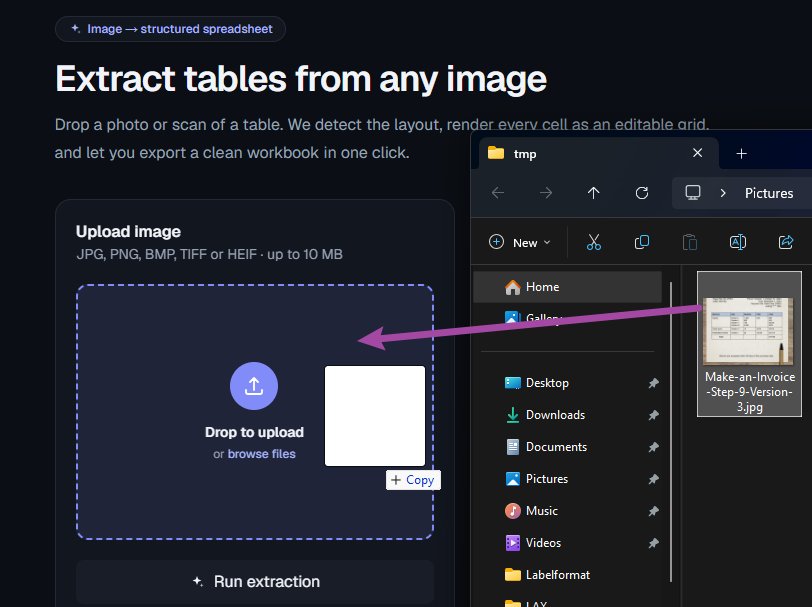
Step 1: Upload your image
Go to extract.jmchung.dev and drag your image into the upload area, or click to browse for a file.
The page will show a preview along with the file name and size.
Step 2: Run AI detection
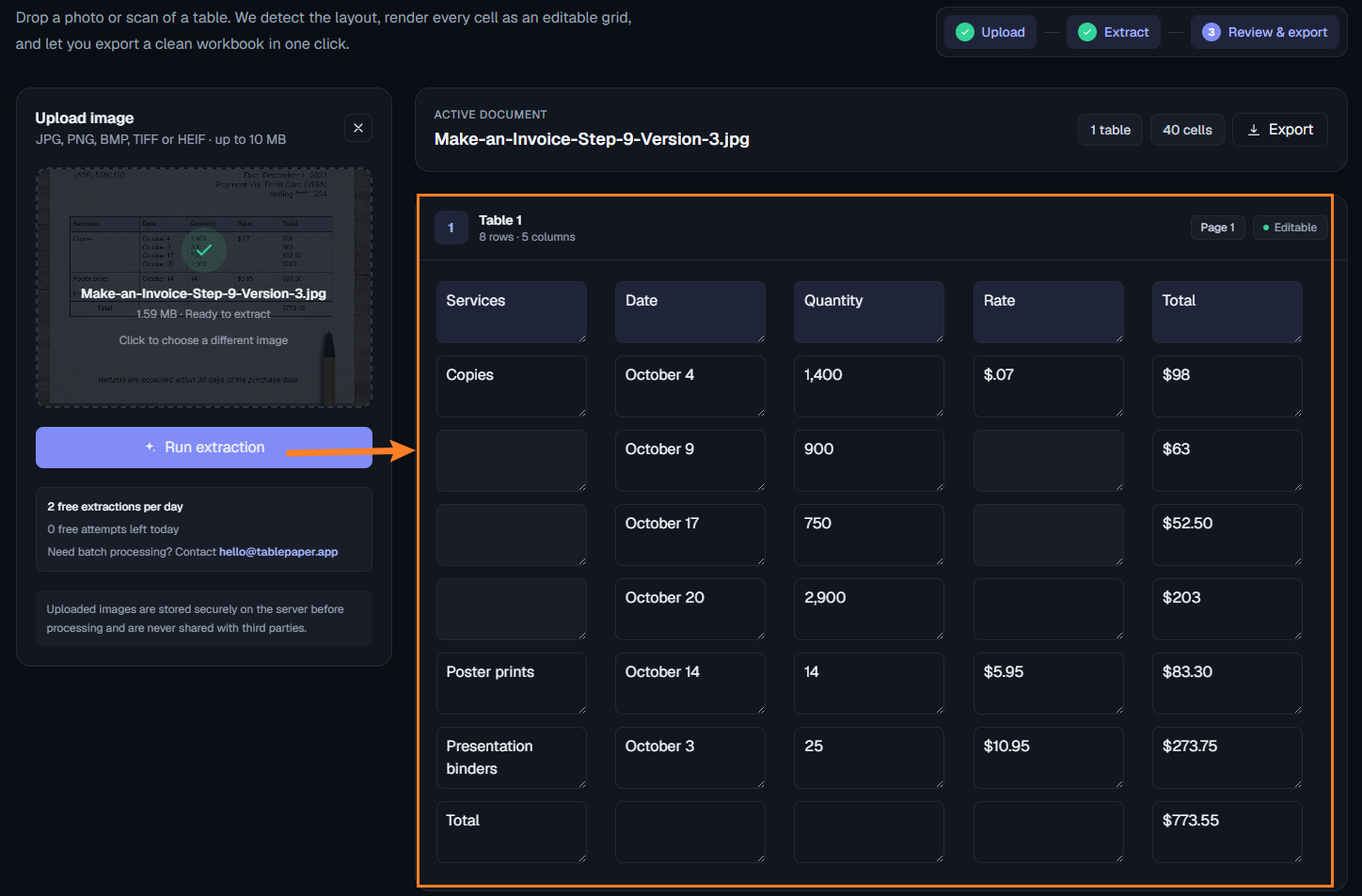
Click the Run extraction button. The AI will automatically detect all tables in the image.
This usually takes a few seconds. The extracted table appears on the right as soon as it’s ready.
Step 3: Edit in the browser
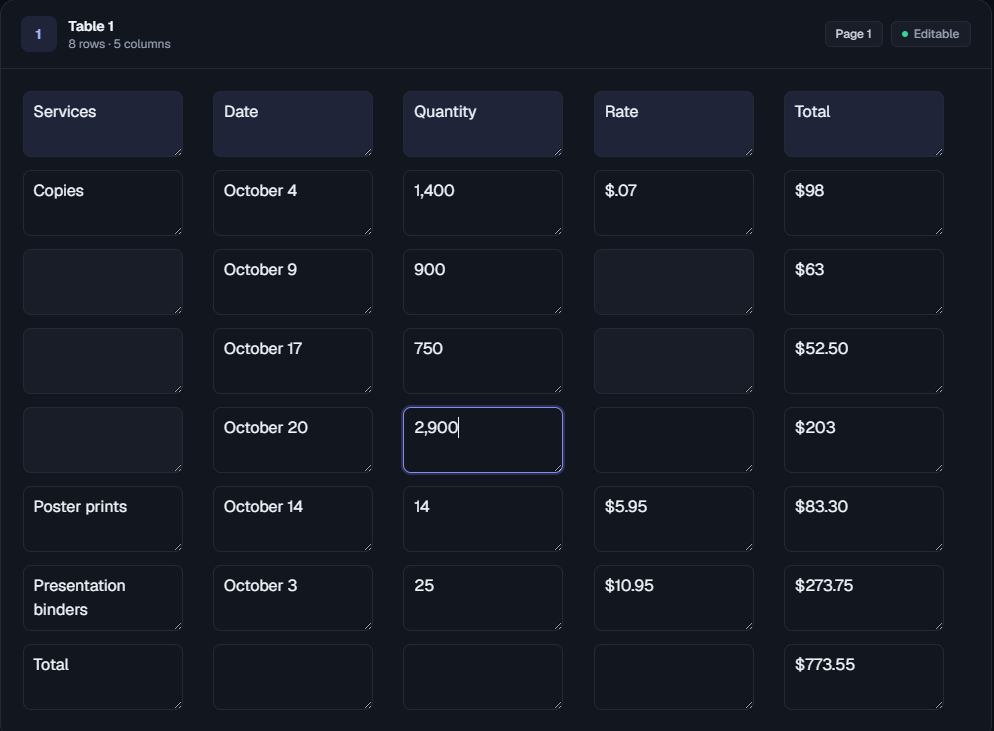
Each detected table is displayed independently. Click any cell to edit its content — fix any recognition errors right there, no extra tools needed.
Step 4: Export to xlsx
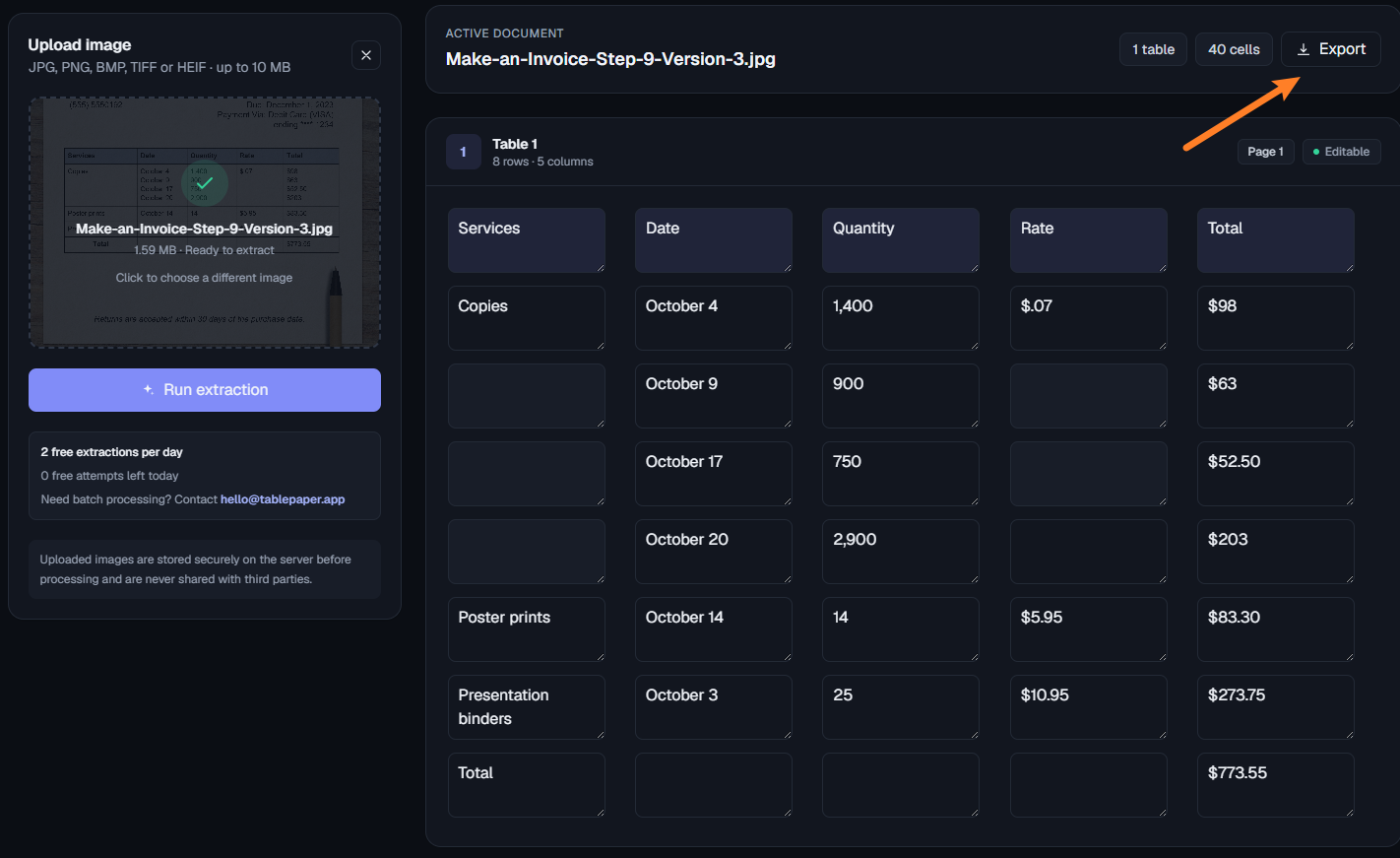
When you’re satisfied, click the Export button in the top-right corner.
The file downloads automatically as tablepaper-export.xlsx, with each detected table on its own worksheet.
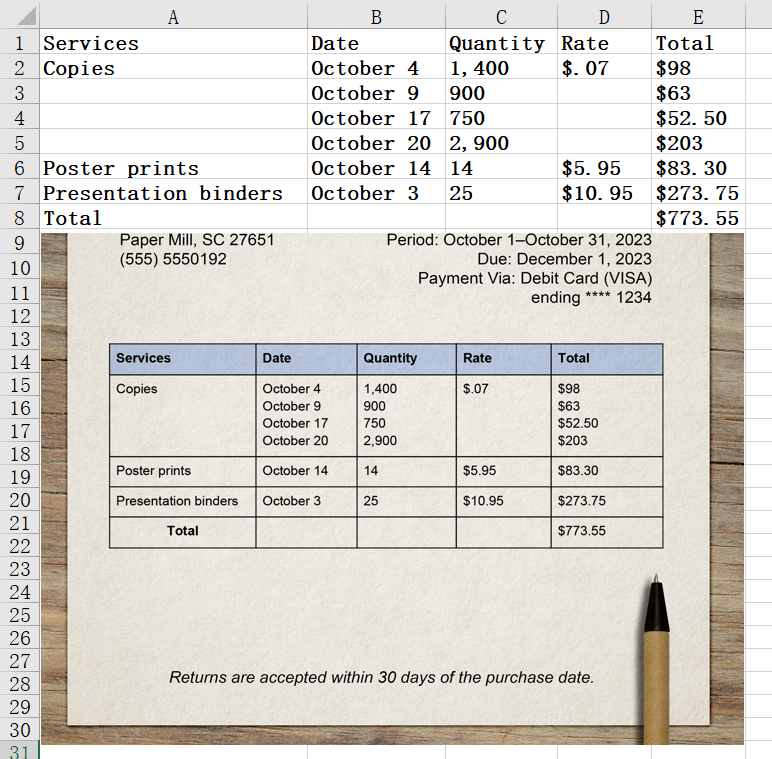
Open it in Excel — the table data is cleanly extracted from the original image:
A few things to know
Recognition accuracy: Works very well on printed tables, document screenshots, and clean scans. Handwritten tables or heavily distorted scans may need a few manual corrections after detection.
Merged cells: The AI detects row and column spans. On export, the value goes into the starting cell and the rest are left empty.
File size: Images that exceed the limit are automatically compressed before processing — no need to resize manually.
Give it a try
extract.jmchung.dev — open and use, no sign-up required.